
How to Install the Snazzy Pixels Siri Shortcut: Digital Planners

This post may contain affiliate links. If you decide to purchase through my links, I may earn a small commission. Read my disclosure page for more info.
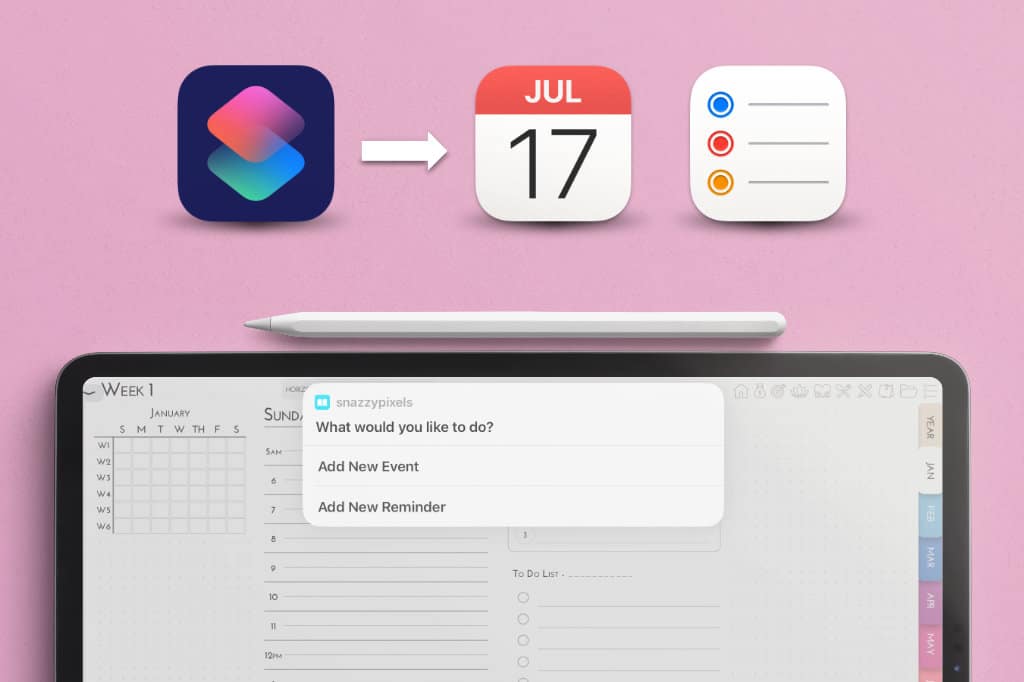
Snazzy Pixels digital planners are available with links to your Apple Calendar and Reminders! Woohoo!!
To use these links, you need to download and install the Siri Shortcut below on your iPad. If you’re unsure how to do this, scroll down for the Step-by-Step Instructions for iPad.
PLEASE NOTE!! — Make sure you DO NOT change the name of the Shortcut. It must remain “snazzypixels” in order to work.
DOWNLOAD the Shortcut Below
The shortcut will ask you to choose your PDF App (Goodnotes, Notability, Noteshelf, etc.) and will always take you back to that app after clicking an Apple Link and running the Shortcut..
If you have multiple Snazzy Pixels digital planners (daily, student, teacher, etc.), you only need to install this Shortcuts ONCE. It will work for ALL Snazzy Pixels digital planners now and in future. 🙂
If you have any issues with the Dropbox link, please use this Google Drive Link instead.
Step-by-Step Instructions for iPad
- Please make sure you’re using SAFARI at the moment.
- Tap ONE of the Shortcut Download Links above.
- This will open the Dropbox link in a new Safari Window. Tap Download.

- After it is done downloading, tap the Downloads Icon on the top right to view your Downloads.
- Tap the Shortcut you’ve just downloaded to open it in the Shortcuts App.

- Tap Setup Shortcut.

- By default, it will show Goodnotes (if you have that app). If this isn’t your preferred PDF app for digital planning, tap where it says Goodnotes and choose the App from the list.
- Check the app you use for digital planning is correct and then Add Shortcut.

Do I need to download/install the Shortcut on all my Apple devices?
Not necessarily! iCloud also allows you to sync Siri Shortcuts across your Apple Devices, so that you can use your digital planner and the Apple Links on your iPad, iPhone, and Mac. So after downloading and installing it on your iPad, for example, you DO NOT need to do this on the others.
However, please check that iCloud is syncing your Shortcuts by:
- Open Settings on your iPad or whichever device you’ve already installed the Shortcut on.
- Tap on your Apple ID & iCloud Account at the top
- Tap iCloud
- Find the section titled “Apps Using iCloud” and tap Show All
- Scroll and find Shortcuts and turn this ON
- Wait a couple minutes to let iCloud do its thing, and voila!
I’m having issues or have a question, how do I get help?
If you’re having issues installing one of the shortcuts, or it’s not running properly, or you just have a couple questions, please message me on Etsy!


